Exporting notes from an unlocked vault: formats, attachments and password prompts
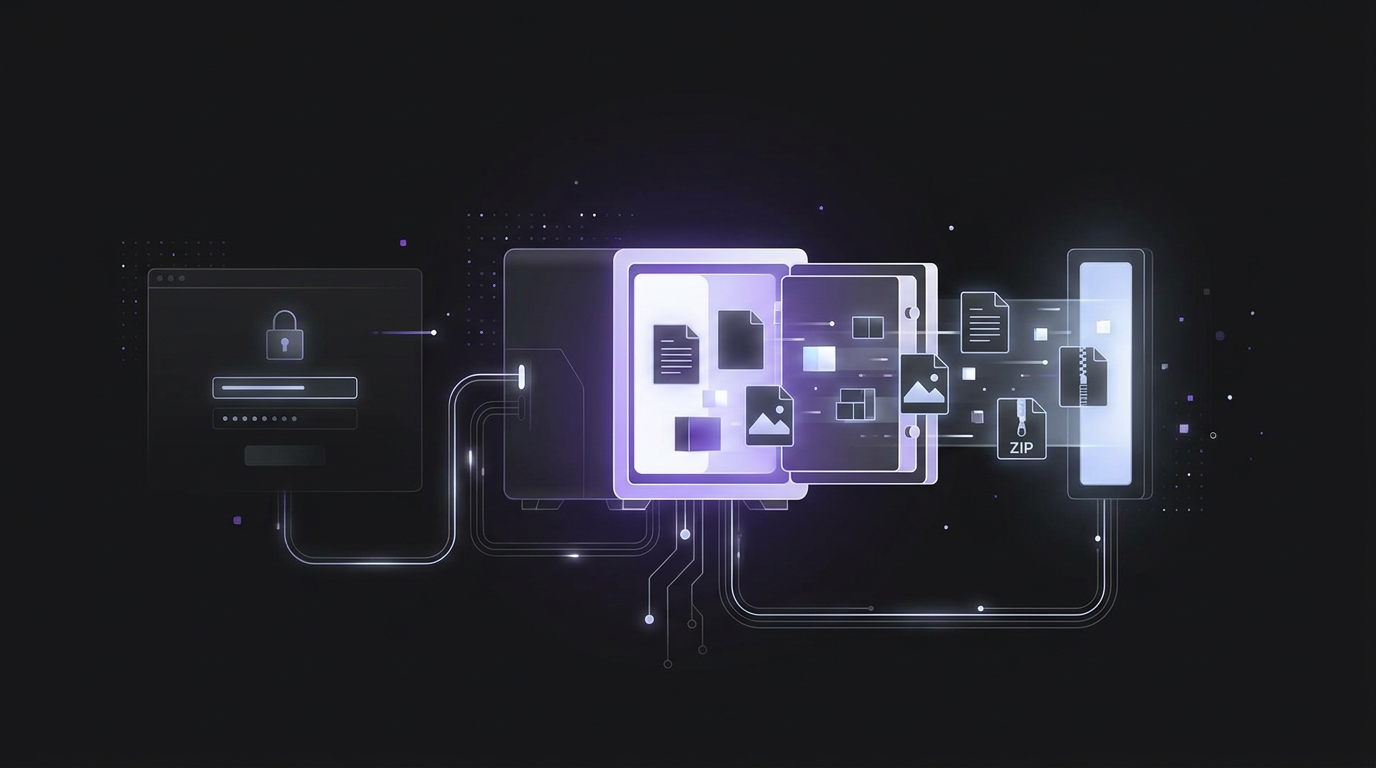
A vault export can serve as a backup of your notes and logins. Encrypted JSON is one of the file formats available in Bitwarden. Moving local notes can involve copying folders as well as files.1, 2
Exporting notes with built-in vault tools
Bitwarden can export vault data, including notes and logins. You can use that data for a backup or move it to another Bitwarden vault.1
An individual export does not include data owned by an organisation. Exports also leave out trash items and Sends.1
Bitwarden decrypts data locally in the app before export. No unencrypted data is sent over the internet during that process.1
In the Bitwarden web app, select Tools, then Export. Choose My vault from Export from for your own items.1
Choose a File Format, then select Export. Enter your master password or an email code to confirm. The file goes to the download location set by your browser.1
In the browser extension, open Settings, then Vault options, then Export vault. Choose the vault data and a File Format.1
Available formats include .json, .csv, encrypted .json and .zip with attachments. For encrypted JSON, you can choose an export tied to your account.1
On mobile, tap Settings, then Vault, then Export vault. Choose .json, .csv or password-protected .json.1
Enter your master password, then select Export. On iOS 26 or later, you can also export straight to another app. That app must support the FIDO Credential Exchange Protocol.1
Which format includes your notes?
Bitwarden offers plaintext .json and .csv, plus encrypted .json. Its .zip export includes a JSON file and attachments. ZIP exports are only available for individual vault data.1
Encrypted JSON is the recommended option for security and the most complete export. Only JSON exports include cards, identities and stored passkeys.1
In 1Password 8 on Mac, open and unlock the app. Select File > Export, choose your account and enter your account password. Choose 1PUX or CSV, then select Export Data.3
Choose where to save the data, then select Open. If you use SSO, follow the sign-in steps instead of entering an account password.3
1Password CSV exports only Login and Password items. Their fields include notes and tags alongside login details.3
CSV leaves out linked items, linked apps and custom fields. Use .1pux if you need the extra fields.3
Keeper's web vault and desktop app offer CSV, JSON, PDF and KDBX exports. Open the export screen from Settings. For work accounts, role policies must allow export.4
Keeper CSV supports folders, subfolders and shared folders. It also has fields for notes and custom fields.4
Keeper JSON works with its import tools and Commander CLI. PDF provides a version of the records suited to printing.4
For encrypted KeePass export, select KDBX in the web vault or desktop app. Provide the KeePass master password you want to use.
You can also provide a key file to encrypt the file. That password encrypts the KeePass file.4
Moving local notes and linked attachments
In Obsidian, you can copy note files and folders into another vault. Copy the attachments folder too, rather than finding each linked file.2
Keep the same folder layout in the new vault, at least for attachments. This lets the copied notes work correctly in Obsidian.2
Copying the whole attachments folder includes the files you need. It can also leave extra files that no note in the new vault links to.2
For a list of selected attachments, create an Obsidian Bases table. Filter notes by a shared feature, such as a folder or tag. Add a formula that lists the full paths of linked attachments.2
Use file.links.filter(value.asFile().ext!="md").map(value.asFile().path) to list links to files other than Markdown notes. Confirm that the table contains the notes and files you need. Click the result count in the table header to export it as CSV.2
The table can show each note's path and its linked attachment paths. In the exported CSV, columns are tab separated. Attachment paths are comma separated within their column.2
A script can read the CSV and copy the listed files. The copied attachments still need the same folder layout as in the original vault.2
Keeping exported files secure
Anyone who can access 1Password's exported files can read the passwords inside them. Do not email those files or store them online. Delete them when you have finished using them.3
Bitwarden's plaintext exports must not be stored or sent through insecure channels, such as email. Delete the unencrypted file immediately after use.1
A Bitwarden account-restricted export can only be imported into the account that created it. A new account with the same email address does not qualify.1
Changing the account's encryption key makes an old account-restricted export impossible to decrypt. After changing that key, replace old exports with new files.1
Choose a password-protected export to move encrypted JSON into a different Bitwarden account. Set a password during export and use it when importing the file.1
That file can be imported into any Bitwarden account with the export password. Keep the password in a safe place.1
When an unlocked vault asks for a password again
1Password 8 asks for your account password during export, even after you unlock the app. If you use SSO, the export flow asks you to sign in instead.3
Bitwarden's web export asks for a master password or an email code to confirm.1
A Bitwarden desktop vault unlocked with a PIN or biometrics can still show an export password prompt. Changing the desktop app's JavaScript can bypass that prompt.5
This workaround requires an alternate unlock method, such as a PIN or Windows Hello. Do not leave your vault unlocked.5
How SimplyBoard protects unlocked notes
SimplyBoard encrypts entry content in your browser. It uses AES-256-GCM for this.
SimplyBoard encrypts entry content before it leaves your device. For new vaults, a key derived with Argon2id wraps the vault key. The key is derived in your browser.6
SimplyBoard's servers store encrypted content and wrapped keys, not the plaintext vault key. An unlocked session exposes readable content. Encryption does not remove every security risk.7
Keep your devices secure because encryption does not protect plaintext exposed in an unlocked session. SimplyBoard offers optional two-factor authentication and a recovery kit to help protect access.7
Set up a SimplyBoard recovery kit in Settings before you need it. Its code can unlock your vault and let you set a new password or passphrase. Keep your encryption secret and recovery code somewhere safe.7
The recovery code is shown once and stays valid until a new kit replaces it. SimplyBoard stores an encrypted copy of your vault key, not the recovery code. An account password reset alone cannot decrypt your existing vault.7
Sources
Frequently asked questions
- Are notes included in CSV and JSON vault exports?
- Bitwarden exports include notes and offer CSV and JSON formats. 1Password CSV includes note fields, but only exports Login and Password items. Keeper CSV also has a notes field.
- Is it safe to store or email unencrypted vault exports?
- Anyone with access to an unencrypted export can read its contents. Do not email plaintext exports or store them in insecure locations. Delete them immediately after use.
- How do you handle linked attachments when moving notes to another vault?
- Copy the note files and linked attachments, keeping the original attachment folder layout. Copying the whole attachments folder avoids finding each file, but can leave unused files in the new vault.
Start writing with true privacy
Get Started Free